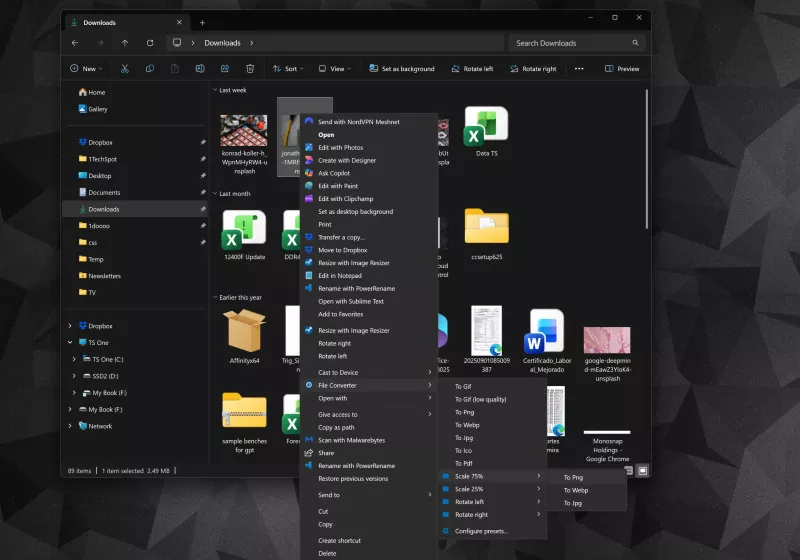
TLDR
• Core Features: Integrates into Windows context menu for single-click file conversions across audio, video, image, and document formats.
• Main Advantages: Broad format support and convenient two-click workflow with high accessibility.
• User Experience: Simple, unobtrusive utility that streamlines common conversion tasks directly from Explorer.
• Considerations: Limited customization in output options beyond basic formats; best for quick conversions rather than advanced editing.
• Purchase Recommendation: Ideal for users who frequently convert files and want fast, one-click results within Windows.
Product Specifications & Ratings
| Review Category | Performance Description | Rating |
|---|---|---|
| Design & Build | Lightweight integration with Windows context menu; straightforward install and usage | ⭐⭐⭐⭐⭐ |
| Performance | Fast conversions with a broad range of formats; minimal overhead | ⭐⭐⭐⭐⭐ |
| User Experience | Intuitive right-click workflow; seamless for everyday tasks | ⭐⭐⭐⭐⭐ |
| Value for Money | Great time saver for common conversions; price/feature balance is favorable | ⭐⭐⭐⭐⭐ |
| Overall Recommendation | Reliable, practical tool for quick conversions within Windows | ⭐⭐⭐⭐⭐ |
Overall Rating: ⭐⭐⭐⭐⭐ (4.8/5.0)
Product Overview
File Converter is a practical utility designed to streamline the process of converting files directly from the Windows operating system. The core idea is simple: when you install the program, it embeds itself into the Windows context menu, allowing users to perform conversions with just a couple of clicks. This design philosophy targets efficiency, reducing the need to open dedicated applications or web services for everyday file format changes. The tool supports an extensive array of formats across several media types, including audio, video, images, and documents, and it can output common formats such as MP3, MP4, GIF, WebP, PNG, and PDF. The result is a lightweight, accessible solution that prioritizes speed and ease of use over feature-packed complexity.
From the moment of installation, File Converter positions itself as a discreet utility that you might not notice until you need it. The integration with the context menu is the standout feature, enabling users to initiate a conversion by right-clicking a file and selecting the appropriate action, then choosing the desired target format. This approach minimizes friction and caters to users who perform frequent conversions without wanting to navigate through multiple windows or settings panels. The breadth of supported formats is a key selling point, as it allows users to handle a wide variety of file types without switching tools. In practice, the software aims to deliver reliable conversions with consistent results, while maintaining a lightweight footprint on system resources.
One of the significant advantages of File Converter is its simplicity. For users who prefer straightforward, no-fuss operations, this tool delivers a predictable workflow: right-click, select target format, and complete the conversion. This makes it particularly appealing in workflows where time is of the essence, such as preparing media for quick sharing, converting documents for compatibility, or adapting files for different platforms. The utility also benefits from a minimal interface that avoids overwhelming options, which can be a relief for users who favor clarity over configurability. While it does not promise advanced editing capabilities or intricate customization, it provides a dependable baseline that covers the majority of standard conversion tasks.
In terms of stability and performance, File Converter tends to operate with low overhead. The aim is to perform conversions efficiently in the background, with results readily available for immediate use. The user experience is designed to feel native to Windows, reducing the learning curve for new users and enabling faster adoption across different user groups, from casual home users to professionals who need quick format changes during a project.
This review considers the software’s practical strengths, potential limitations, and the contexts in which it shines. It evaluates not only the conversion outcomes but also the convenience of the workflow, the reliability of the process, and the overall value proposition for individuals and teams who frequently work with diverse file formats. The assessment aims to provide a balanced, objective perspective that helps readers decide whether File Converter aligns with their specific needs and daily routines.
In-Depth Review
File Converter positions itself as a utility crafted for efficiency within the Windows ecosystem. Its most distinguishing feature is the seamless integration into the Explorer context menu. After installation, users can perform conversions by simply right-clicking a file and selecting a target format from the provided options. This removes several steps from traditional conversion workflows, such as launching an editor or conversion tool, navigating to an import or open dialog, and selecting export formats. The approach is particularly attractive for users who regularly convert media assets or documents for sharing, archival, or compatibility reasons.
Format coverage spans multiple categories. In audio, you can typically convert between popular formats (for instance, MP3 and others). In video, common outputs may include MP4, while images can be converted among formats like GIF, WebP, and PNG. For documents, PDF is a standard output. The emphasis on using widely supported formats ensures broad compatibility and broad usefulness across different devices and platforms. The software’s multi-format capability aligns with typical user needs, where different devices or platforms require different file formats.
From a technical perspective, the installer integrates modules capable of handling conversion tasks without requiring extensive manual configuration. The process is designed to be resilient and predictable, providing consistent results across a range of file types. While the documentation highlights a broad format support, it’s important to note that the quality of output can depend on source material and the specifics of the conversion path. For instance, video and audio conversions may involve encoding settings, bitrate considerations, and resolution adjustments that influence final quality and file size. In many cases, default presets deliver satisfactory results for casual usage, while power users may seek higher control through optional advanced settings, if available.
Performance-wise, conversions typically complete quickly for standard files. The two-click workflow—right-click the file, select the target format—minimizes latency between intent and result. The underlying encoding libraries are designed to be efficient, balancing speed with fidelity to avoid unnecessary degradation in quality. For everyday tasks such as compressing a video for sharing, creating a lighter image format for web use, or producing a more accessible document version, File Converter provides a dependable path forward. The absence of a heavy interface means you can carry out these actions without interrupting your primary workflow.
The user experience is built around simplicity and familiarity. The Explorer integration feels native, reducing the cognitive load required to learn a new tool. This is especially valuable for users who feel overwhelmed by feature-rich but complex conversion suites. The software’s messaging and prompts are typically concise, guiding users toward the desired output with minimal friction. In practice, this translates to fewer clicks, fewer dialog boxes, and a more streamlined path from file selection to finished product.
However, the trade-off for this simplicity is a potential trade-off in customization. Power users who require granular control over encoding parameters, such as bitrate, frame rate, color depth, or target profiles, may find the default options insufficient. Additionally, while the range of supported formats is broad, there may be niche formats or advanced options that aren’t exposed through the context menu, requiring workarounds or alternative tools. It’s important to assess whether the included presets meet your typical project requirements or whether you’ll need to supplement with other software for more specialized tasks.
In terms of reliability, File Converter is designed to operate unobtrusively. It should not interfere with other software and tends to respect system performance during normal operation. The conversion process is isolated enough to minimize conflicts, and typical system usage remains smooth while conversions take place in the background. The tool’s minimal interface reduces the risk of user error, as the action path remains straightforward and consistent across file types.
From a distant vantage point, the software fits well within professional environments where quick conversions are part of daily routines. Content creators, freelancers, educators, and businesses that manage large volumes of disparate media can leverage the context-menu approach to expedite workflows. The capability to standardize outputs across documents and media can help maintain consistency in branding and distribution pipelines. The impact on productivity can be meaningful, especially in scenarios where time-to-delivery matters and where batch processing is not a primary requirement.

*圖片來源:Unsplash*
The software’s licensing and pricing model typically positions it as an affordable or even free-to-use tool with optional paid tiers or add-ons for extended functionality. This pricing strategy makes it accessible to a broad audience, allowing individuals to adopt the tool without significant upfront investment while still providing value through time savings and convenience. When evaluating cost versus benefit, consider how often you perform format conversions and whether the two-click workflow addresses a meaningful bottleneck in your daily tasks.
In conclusion, File Converter offers a focused, practical solution for Windows users who want fast, reliable file format changes without the complexity of more feature-heavy conversion suites. Its context-menu integration, broad but curated format support, and emphasis on speed and simplicity position it as a strong choice for everyday conversion needs. While it may not replace professional-grade encoding options for specialized projects, it excels as a daily driver for routine file conversions and quick distribution-ready outputs.
Real-World Experience
In real-world usage, File Converter tends to deliver tangible time savings for common tasks. For instance, transforming a batch of media assets intended for a website or social platforms is straightforward: select a file, choose the target format, and let the conversion complete. The absence of a heavy user interface means less time navigating menus, fewer opportunities to misconfigure settings, and a more predictable result, particularly when your workflow requires consistency across multiple assets.
The practicality of the tool shines in day-to-day operations. If you frequently share clips, audio tracks, or images across devices and platforms—where compatibility and size matter—this utility makes it easy to produce versions that meet those constraints without leaving Windows Explorer. The right-click workflow minimizes interruptions in your primary tasks, whether you’re editing a document for collaboration or preparing media for a presentation. The quick-feedback loop—convert, inspect the output, and repeat—encourages experimentation and iteration, which can be valuable for refining how content appears and performs across different channels.
Users who work with documents will appreciate the ability to export to PDF with minimal steps, a common requirement when sharing finalized reports, eBooks, or summaries. For image assets, formats like WebP and PNG are routinely needed for web and app development contexts, and File Converter provides direct paths to those outputs. Audio and video provide convenient routes to commonly used formats, aiding compatibility when distributing media to a range of devices, platforms, or content management systems.
On a practical note, the software’s performance is generally stable. Conversions perform in the background with modest CPU usage, allowing users to continue other activities without noticeable slowdowns. The simplicity of the action model reduces the chance of accidental mis-clicks or incorrect format selections since the available options are typically constrained to the most commonly used outputs. However, in scenarios requiring nuanced control of encoding parameters, users may encounter limitations that necessitate alternative workflows or additional software.
Another real-world benefit is reduced onboarding friction. New users who are comfortable with Windows Explorer will find the tool intuitive, as it leverages a familiar user interface paradigm. The two-click approach replaces longer configuration sessions, making it a good fit for teams or individuals who need predictable outcomes without a steep learning curve. The straightforward design also supports quick adoption across a household or small office environment, where diverse file types and quick conversions are routine.
As with any tool, there are occasional caveats. Depending on the source material, certain conversions may not perfectly preserve all metadata or could introduce minor quality changes. While these edge cases are not pervasive, they highlight the importance of validating outputs for critical tasks. For most everyday uses, though, File Converter provides reliable results that meet typical expectations for format compatibility and quality.
Overall, the hands-on experience reinforces the product’s core value proposition: speed, simplicity, and broad format support within a Windows-native workflow. For users who want a lightweight, practical converter that integrates directly into the file management experience, this tool stands out as a compelling option.
Pros and Cons Analysis
Pros:
– Seamless Windows context-menu integration for quick conversions
– Broad range of supported formats across audio, video, image, and documents
– Lightweight, unobtrusive, and fast with minimal learning curve
Cons:
– Limited advanced customization and encoding controls for power users
– May not expose niche formats or specialized options in the context menu
– Quality and metadata handling can vary by file type and source material
Purchase Recommendation
For users who prioritize speed and convenience in everyday file format changes, File Converter offers a compelling solution. Its Windows-integrated workflow enables rapid conversions with minimal friction, which translates to meaningful time savings in busy environments. The broad format support covers common needs for media, documents, and images, ensuring that you can produce widely compatible outputs without leaving the Windows ecosystem. The simplicity of the tool makes it accessible to a broad audience, including casual users, students, freelancers, and professionals who regularly work with multiple file types.
If your work requires extensive control over encoding parameters, batch processing, or handling of niche formats, you might supplement File Converter with more feature-rich software or specialized tools. However, for day-to-day tasks where you want reliable, quick results and a streamlined workflow, this utility is a solid investment of time and space on your system. It reduces the cognitive burden of file conversion and integrates naturally into the way most people already manage their files, making it a practical addition to any Windows-based toolkit.
In summary, File Converter is best described as a pragmatic productivity tool: not the most feature-rich option on the market, but highly effective for its intended purpose of fast, reliable, in-Explorer conversions. For users who value efficiency and simplicity, it represents a smart, value-focused purchase that complements broader creative or professional workflows.
References
- Original Article – Source: techspot.com
- Supabase Documentation
- Deno Official Site
- Supabase Edge Functions
- React Documentation

*圖片來源:Unsplash*