TLDR
• Core Points: Install PostgreSQL in WSL, ensure it runs and accepts connections, configure listens_addresses and pg_hba, use Windows-side DBeaver to connect via localhost or a forwarded port, and verify firewall and network settings.
• Main Content: A practical guide to linking PostgreSQL running inside WSL with DBeaver for Windows users, covering prerequisites, configuration steps, and troubleshooting.
• Key Insights: WSL provides a Linux environment on Windows, and network bridging between WSL and Windows allows seamless GUI management with DBeaver.
• Considerations: Security implications of pg_hba settings, correct port exposure, and ensuring services start correctly on boot.
• Recommended Actions: Follow step-by-step setup, test connectivity, and maintain updated software versions.
Product Specifications & Ratings (N/A)
Content Overview
PostgreSQL is a robust relational database management system designed to store and manage structured data. When PostgreSQL runs inside Windows Subsystem for Linux (WSL), it operates within a Linux environment that resides on a Windows host. DBeaver, a versatile graphical database management tool, supports PostgreSQL and can connect to a PostgreSQL instance running in WSL. This pairing enables users to leverage a comprehensive visual interface for database administration, query execution, and data management without solely relying on command-line tools. This article presents a practical, structured guide to configuring PostgreSQL in a WSL environment and connecting DBeaver from Windows to that instance, along with best practices and common pitfalls.
The guidance is particularly relevant for developers, data engineers, and IT professionals who use Windows as their primary workstation but require the capabilities of a Linux-based PostgreSQL server for development, testing, or educational purposes. By enabling a GUI-driven workflow, teams can accelerate schema design, data exploration, and performance tuning while maintaining the advantages of PostgreSQL’s Linux-centric tooling.
To ensure a smooth experience, the steps cover installation prerequisites, core configuration changes, authentication settings, network considerations, and verification procedures. The approach emphasizes reliability and security, with attention to how WSL networking interfaces interact with Windows networking, how to expose the PostgreSQL port correctly, and how to validate that DBeaver can connect successfully. While the example focuses on PostgreSQL, the principles apply to other database engines supported by DBeaver, with adjustments to driver versions and connection strings as needed.
In-Depth Analysis
The first phase involves preparing the environment. Begin by ensuring you have a compatible Windows version with WSL enabled (WSL 2 is recommended for enhanced performance and full system call compatibility). Install a Linux distribution from the Microsoft Store, such as Ubuntu, and update its package list. Within the Linux environment, install PostgreSQL from the distribution’s package manager or via the PostgreSQL Global Development Group (PGDG) repositories for more control over versions and security updates.
Key considerations in this phase include choosing the PostgreSQL version that aligns with your development or production needs and setting up a dedicated PostgreSQL role and database for initial testing. It is prudent to avoid using the default superuser account for day-to-day development tasks; instead, create a non-privileged user with appropriate permissions to connect and manage your databases.
The second phase centers on configuring PostgreSQL to accept external connections, specifically connections originating from the Windows host where DBeaver runs. In PostgreSQL, the main configuration files to adjust are postgresql.conf and pg_hba.conf. The postgresql.conf file controls server-wide parameters, including the address on which the server listens. By default, PostgreSQL may listen only on the local interface (localhost). To enable connections from Windows, modify the listen_addresses parameter to include either the specific network interface, a wildcard, or localhost depending on your security posture. A typical change is to set listen_addresses = ‘*’ to allow connections from any address, though restricting to known subnets is more secure.
The pg_hba.conf file governs client authentication methods. This file determines which hosts can connect, which databases they may access, which users may connect, and which authentication methods are required. For a Windows-to-WSL scenario, you will add a line permitting host-based connections from the Windows host or a broader range that includes the Windows side. A commonly used entry for development is:
host all all 0.0.0.0/0 md5
This line allows password-authenticated connections from any IPv4 address. Depending on your network setup, you can constrain the IP range to your local subnet (for example, 192.168.0.0/24) to reduce exposure. After editing these files, restart the PostgreSQL service to apply changes. In Debian-based distributions, the commands typically look like:
sudo service postgresql restart
or
sudo systemctl restart postgresql
Networking between WSL and Windows requires attention. WSL 2 runs a lightweight Linux kernel inside a virtualized environment, and its network is accessible from Windows via localhost, albeit with some caveats. In most setups, connecting from Windows to WSL PostgreSQL via localhost on the standard port (5432) works seamlessly, thanks to the built-in localhost bridge. If you encounter issues, verify that the PostgreSQL server is listening on the intended address by using netstat -plnt | grep 5432 or ss -ltnp | grep 5432. You can also test a local connection from within WSL using psql -h localhost -U your_user -d your_db to ensure the server accepts internal connections before attempting external ones.
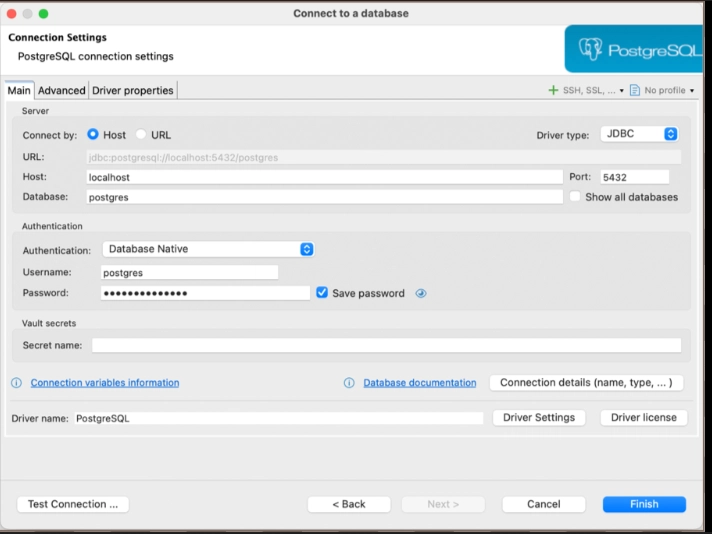
Next, install DBeaver on Windows if you have not already. DBeaver supports PostgreSQL through the PostgreSQL JDBC driver. When creating a new connection in DBeaver, select PostgreSQL as the driver, and provide connection details. Set the host to localhost, the port to 5432 (or your configured port), database name to the database you want to access, and the user credentials you configured for PostgreSQL. If you used a non-default port or restricted access, ensure that the host and port reflect those settings.
Security considerations are important. Exposing PostgreSQL to a broad range of addresses can raise risk. If you must use a wider listen address, ensure robust authentication (md5 or scram-sha-256 where supported) and strong passwords. In environments where security is paramount, prefer binding listen_address to a specific internal IP and restricting connections via pg_hba.conf to trusted networks. Regularly monitor access attempts in PostgreSQL and consider enabling SSL connections for encrypted client-server communication.
Troubleshooting commonly encountered scenarios include:
– Connection failures from DBeaver: Confirm that PostgreSQL is listening on the expected host and port, ensure the pg_hba.conf allows the Windows host, and verify that Windows firewall or antivirus software isn’t blocking the connection.
– Authentication errors: Double-check the username and password, ensure the correct database context, and confirm that the authentication method in pg_hba.conf matches the credentials you are using.
– Performance considerations: If latency is higher than expected, assess whether running PostgreSQL in WSL 2 introduces any overhead in your specific workload, and evaluate whether adjusting memory allocation for WSL or using a shared data directory reduces contention.

*圖片來源:Unsplash*
A practical workflow for a successful setup includes these steps:
1) Install Ubuntu (or your preferred distribution) from the Windows Store and update packages.
2) Install PostgreSQL in WSL and create a sample database with a dedicated user.
3) Edit postgresql.conf to set listen_addresses and adjust any necessary performance parameters.
4) Edit pg_hba.conf to permit connections from Windows via a secure method (md5 or better).
5) Restart PostgreSQL to apply changes.
6) Install DBeaver on Windows and configure a PostgreSQL connection using host = localhost and the proper port, database, and credentials.
7) Test the connection in DBeaver by opening a sample schema or running a quick query.
8) Harden security as needed by restricting access to a specific subnet and enabling SSL, if appropriate.
This approach provides an effective bridge between the Linux-based PostgreSQL instance and a Windows-based GUI tool, allowing users to manage and interact with their data visually while retaining the power and flexibility of PostgreSQL in a Linux environment.
Perspectives and Impact
Integrating PostgreSQL running inside WSL with DBeaver on Windows illustrates the practical interoperability of modern development environments. It demonstrates that Windows users can leverage Linux-based services without dual-booting or investing in separate hardware. The combination supports rapid development cycles, easier database design, and more accessible data exploration, benefitting teams that standardize on PostgreSQL and want to maintain a unified workflow across operating systems.
Looking ahead, as WSL and Windows networking continue to mature, the reliability and performance of cross-environment connections should further improve. Enhancements to WSL’s file system performance, more robust integration of Linux services with Windows tools, and better support for SSL/TLS in cross-platform configurations will further streamline these workflows. Administrators may increasingly rely on GUI-based tools like DBeaver to manage distributed or hybrid environments, reducing the friction of managing databases across different operating systems.
Security remains a prevailing concern in cross-environment configurations. As teams enable broader access to development databases, ensuring robust authentication, network segmentation, and encryption remains essential. There is an opportunity to implement stronger default configurations that balance accessibility with security, especially for educational or sandbox environments. Additionally, the ongoing development of PostgreSQL features, including performance enhancements and broader authentication options, will influence how administrators design and secure cross-platform deployments.
Key Takeaways
Main Points:
– Running PostgreSQL inside WSL enables a Linux-based database on a Windows host, accessible through Windows GUI tools like DBeaver.
– Correctly configuring listen_addresses and pg_hba.conf is essential for secure and reliable connections from Windows.
– Verifying network connectivity and restarting services after configuration changes ensures successful integration.
Areas of Concern:
– Potential exposure of PostgreSQL to broader networks if the listen_addresses setting is overly permissive.
– Firewall and antivirus interactions that may block cross-environment connections.
– Performance implications of running PostgreSQL in WSL compared to a native Linux or Windows-native setup.
Summary and Recommendations
Connecting PostgreSQL on a Linux (WSL) server to DBeaver on Windows provides a convenient, visually intuitive means of database management while preserving the benefits of a Linux-based PostgreSQL environment. The process involves installing PostgreSQL in WSL, configuring the server to accept external connections through listen_addresses and pg_hba.conf, and establishing a connection from DBeaver using localhost and the appropriate port. While straightforward, the setup requires careful consideration of security, network exposure, and service management.
To maximize success:
– Use WSL 2 for improved performance and compatibility.
– Limit listen_addresses to trusted addresses where possible and constrain pg_hba.conf to known hosts.
– Test connectivity incrementally: internal WSL connections first, then from Windows with DBeaver.
– Monitor access and maintain up-to-date software versions to mitigate security risks.
– Consider SSL or VPN solutions if handling sensitive data or exposing databases beyond a secure local network.
By following these steps and best practices, developers and IT professionals can harness the collaborative strengths of WSL and DBeaver to manage PostgreSQL databases efficiently and securely.
References
- Original: https://dev.to/motanga/connecting-postgresql-on-a-linux-wsl-server-to-dbeaver-2ki0
- Additional references:
- PostgreSQL documentation: https://www.postgresql.org/docs/current/
- WSL 2 networking overview: https://learn.microsoft.com/en-us/windows/wsl/about
- DBeaver PostgreSQL connection guide: https://dbeaver.io/docs/posts/postgresql/

*圖片來源:Unsplash*