TLDR
• Core Points: Chrome on desktop gains built-in split view, enhanced PDF annotations, and a direct “Save to Google Drive” option to streamline cloud storage.
• Main Content: These productivity upgrades aim to reduce window switching, improve document interaction, and simplify saving files to Drive.
• Key Insights: Integrating split view with a robust PDF editor and cloud save flow signals Google’s focus on multitasking, document collaboration, and cloud-centric workflows.
• Considerations: Availability may vary by platform or Chromium build; features may require a recent Chrome update and user-enabled settings.
• Recommended Actions: Update Chrome to the latest version, enable the new features in settings, and experiment with split view and Drive saves for workflow optimization.
Content Overview
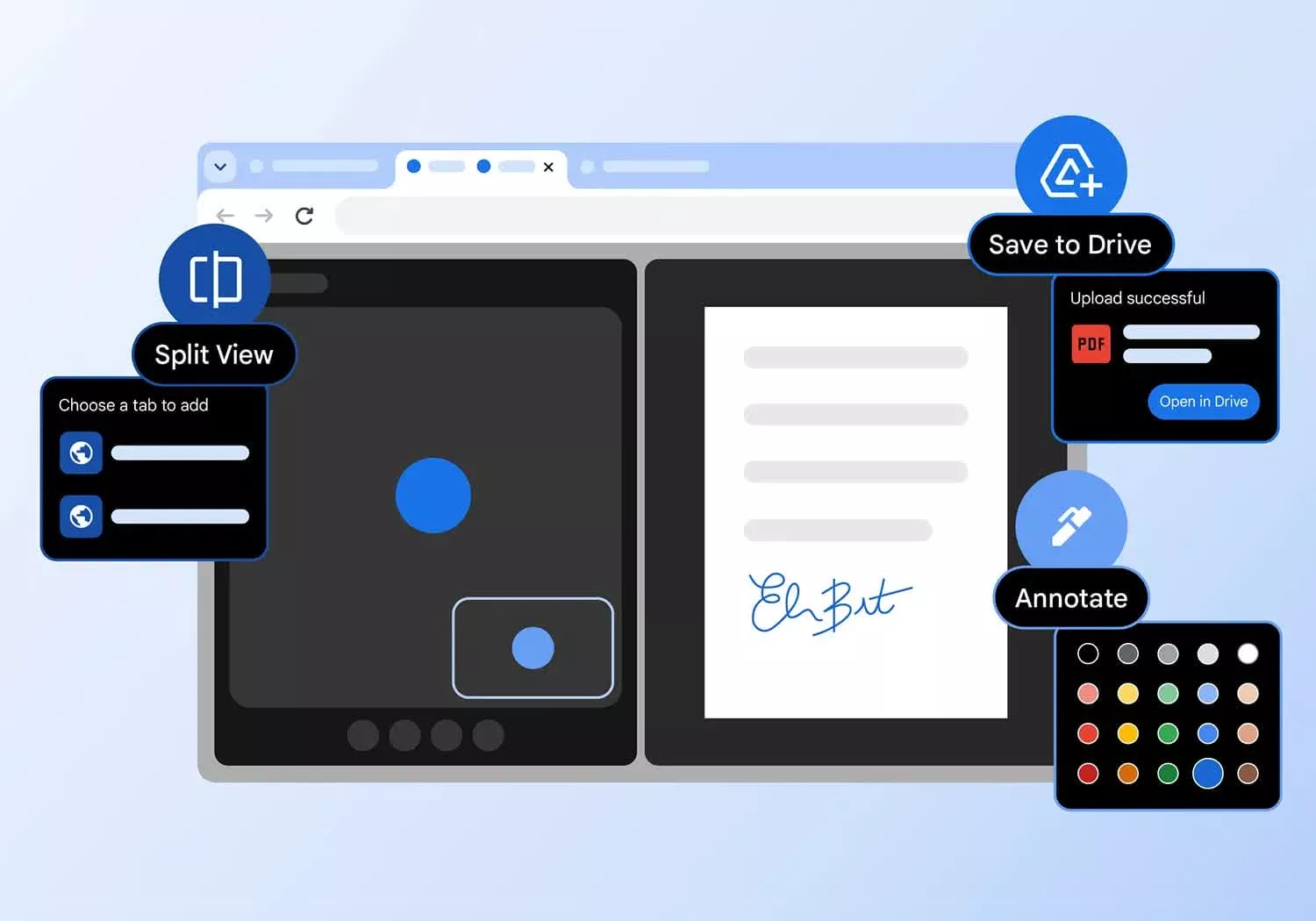
Google Chrome has expanded its desktop feature set with three notable productivity-focused enhancements. First is a built-in split view that lets users place two browser tabs side by side, facilitating easier comparison, multitasking, and reference while staying within a single window. This is designed to reduce the friction of juggling multiple windows or windows arranged across the screen, a common pain point for researchers, developers, and power users who frequently compare sources or work across several web apps simultaneously.
Second is an upgraded PDF viewing experience that extends beyond simple rendering. The new PDF viewer supports highlights, notes, and signatures, allowing users to annotate documents directly in the browser. This aligns Chrome with common document review workflows, particularly for students, professionals, and teams who rely on quick feedback cycles or need to mark up PDFs without switching to a dedicated editor.
Third is a new “Save to Google Drive” option that enables sending documents directly to a dedicated Drive folder from within Chrome. This feature aims to streamline the process of saving web content, documents, or downloaded files to Google Drive, reducing the steps involved in organizing work in the cloud.
These updates collectively emphasize Chrome’s ongoing emphasis on productivity and cloud integration, aiming to consolidate tab management, document interaction, and cloud storage into a cohesive browser experience.
In-Depth Analysis
The introduction of a built-in split view in Google Chrome represents a meaningful shift in how users interact with the browser on desktop platforms. Historically, users often relied on operating system window management or third-party window tiling utilities to view two or more tabs concurrently. Chrome’s split view consolidates this functionality into the browser itself, offering a more native and streamlined approach. For workflows that demand side-by-side comparison—such as price research, academic sourcing, or cross-referencing documentation—the ability to dock two tabs within the same window minimizes context-switching and enhances focus. The feature likely leverages the browser’s existing tab management APIs and might allow adjustable pane sizes, drag-and-drop tab rearrangement, and quick toggles to exit split view. While details can vary by platform and Chrome version, the core value proposition is clear: keep users in the Chrome ecosystem while boosting multitasking capabilities.
Enhancements to the PDF viewer address a longstanding user need: annotatable documents within the browser. By supporting highlights, notes, and signatures, Chrome’s PDF viewer becomes a more capable tool for review cycles, coursework, contract reading, and collaborative feedback. The ability to annotate without exporting to a dedicated editor can save time and reduce friction in scenarios where quick markup is essential. Depending on implementation, annotations may be stored locally with the PDF or synchronized across devices via Google Drive, ensuring accessibility across environments. Users should note potential differences in annotation features compared to full-featured desktop PDF editors, but for many day-to-day tasks, in-browser annotation represents a significant productivity uplift.
The addition of a “Save to Google Drive” option directly from Chrome reflects Google’s broader strategy to centralize productivity workflows within its cloud ecosystem. By creating a direct path from the browser to a dedicated Drive folder, users can capture web content, documents, or downloads without navigating through multiple save dialogs or folder hierarchies. This feature can be particularly beneficial for students and professionals who rely on Drive as a central repository for project files and reference material. It can also complement Drive’s own synchronization and collaboration features, enabling alignment between local workflows and cloud storage. The effectiveness of this integration depends on the user’s Drive organization, permissions, and whether the saved items preserve formatting and metadata.
From a design perspective, these features collectively emphasize a frictionless user experience. The split view reduces the cognitive load associated with window management, the enhanced PDF annotations facilitate quick feedback loops, and the cloud save option aligns local actions with cloud-based collaboration. However, as with any new browser capability, practical adoption will rely on discoverability, intuitive controls, and consistent performance across devices and browsers. Chrome’s development teams typically roll out such features gradually, with user feedback shaping subsequent refinements.
Beyond immediate utility, these upgrades signal Google’s intent to position Chrome as a centralized hub for productivity. By removing the need to switch contexts between separate applications, the browser becomes a more capable workspace for research, writing, and collaboration. This direction dovetails with wider industry trends toward integrated digital workflows, where web apps, cloud storage, and note-taking tools interoperate seamlessly within a single environment.
Of note is the potential impact on competing browsers and productivity suites. Users who previously relied on third-party tiling utilities or standalone PDF editors may find Chrome’s built-in capabilities sufficient for many tasks, potentially influencing user habits and feature expectations across the browser landscape. In addition, the ability to save to Drive foregrounds Google’s cloud-first approach, reinforcing Drive as a central repository and collaboration platform within a broad ecosystem of Google services.
As with any feature rollout, practicality varies with hardware capabilities and software configurations. Desktop environments with large displays or ultrawide screens tend to benefit most from split view, while users on smaller screens may need more flexible controls to avoid cramped layouts. The PDF annotation features, while useful, may have limitations in terms of advanced editing or form handling compared to dedicated tools. Finally, the new save-to-Drive feature will depend on user accounts, Drive storage quotas, and network conditions for syncing.
Future iterations could expand split view to support more complex multi-panel arrangements or integration with Chrome OS workspace features. Deeper annotation synchronization with Drive, offline access modes, and cross-device parity may also be on the roadmap. As Google iterates on these capabilities, user feedback will likely shape decisions around performance optimizations, accessibility options, and cross-platform consistency.
Overall, the trio of updates reinforces Chrome’s position as a productivity-oriented browser. By enabling side-by-side tab viewing, richer in-browser PDF interactions, and direct cloud saving, Chrome seeks to reduce workflow friction and encourage longer, more integrated sessions within the browser environment. For users who frequently manage research tasks, document reviews, or cloud-based collaboration, these features offer practical enhancements with the potential for meaningful changes in daily routines.
Perspectives and Impact
The new features reflect a broader shift in how users interact with web browsers as more than just gateways to websites. Split view, inline PDF annotations, and direct cloud saves contribute to an ecosystem where the browser doubles as a central workspace. This has several implications:
- Productivity workflows: By minimizing context switches, professionals can keep documents, web research, and notes in a single workspace. This can speed up tasks such as literature reviews, project planning, and contract reviews.

*圖片來源:Unsplash*
Collaboration and sharing: Annotated PDFs and cloud-synced documents can streamline feedback loops among teammates, instructors, and clients. When annotations are preserved with Drive synchronization, teams can rely on a consistent set of marked-up materials across devices.
Education and research: Students and researchers often juggle multiple sources. Split view lets them compare sources side by side, while PDF annotations support immediate note-taking and citation workflows within the browser.
Cloud-centric UX expectations: Users increasingly expect cloud-first features to be embedded directly into their primary tools. Chrome’s Drive integration reinforces the expectation that browser actions should seamlessly feed into cloud storage and sharing platforms.
Competitive dynamics: Other browsers may respond with their own parallel features, potentially leading to broader improvements across the industry. The emphasis on in-browser productivity could drive demand for more integrated tools in other ecosystems as well.
Accessibility and inclusivity: As with any new UI, considerations around accessibility are important. Split view controls, keyboard navigability, and screen reader compatibility will influence how inclusive these features are for users with disabilities.
Offline considerations: While cloud features are valuable, offline access and offline-annotation capabilities may be important to users with intermittent connectivity. Ensuring that annotations and saved documents are available offline and sync once online will be a key area for follow-up improvements.
Future directions: The existing updates lay a foundation for more advanced features, such as multi-pane layouts beyond two panels, richer annotation tools, and deeper integration with other Google services like Google Keep or Docs. These potential enhancements could further consolidate the browser as a versatile productivity platform.
In the longer term, Chrome’s feature set could influence how developers design web apps and document workflows. If users become accustomed to in-browser annotation and intuitive cloud saving, web apps may increasingly optimize for these capabilities, offering richer collaboration, commenting, and versioning within the browser context. This could accelerate the shift toward browser-first productivity ecosystems, diminishing the perceived need to switch between standalone editors and cloud storage interfaces.
However, the adoption of these features will depend on user experience quality, reliability, and the extent to which they meet real-world needs. If the split view, PDF annotations, and Drive saves deliver tangible time savings and reduce friction in common tasks, they stand a strong chance of becoming staple features for daily workflows. Conversely, if there are inconsistencies, performance issues, or limited cross-device parity, users may adopt them selectively or seek alternatives.
As Google charts this trajectory, the company’s ongoing investment in browser-based productivity will likely continue to intersect with its broader cloud and collaboration strategy. The result could be a more integrated, efficient, and cloud-native browsing experience that reflects contemporary expectations for digital work environments.
Key Takeaways
Main Points:
– Chrome introduces built-in split view to enable side-by-side tab viewing within a single window.
– The PDF viewer gains highlights, notes, and signatures for in-browser annotation.
– A new Save to Google Drive option simplifies sending content to a dedicated Drive folder.
Areas of Concern:
– Feature availability may vary by platform and Chrome version.
– Annotation features may not match the capabilities of specialized desktop PDF editors.
– Dependence on Google Drive infrastructure and storage quotas for the Save to Drive workflow.
Summary and Recommendations
Google Chrome’s latest desktop updates aim to streamline productivity by reducing window management, enabling in-browser document annotation, and simplifying cloud storage workflows. The split view feature addresses a common challenge for multitaskers who need to reference multiple pages simultaneously, while the enhanced PDF viewer supports more robust review and collaboration directly in the browser. The Save to Google Drive option aligns local browser actions with cloud storage, potentially accelerating cloud-based workflows and collaboration.
For users, the practical approach is straightforward: update Chrome to the latest version and experiment with the new features to determine how they fit into your daily routines. If you frequently compare sources, annotate PDFs, or save web content to Drive, these features can offer tangible benefits. It remains important to assess performance across devices and ensure that any annotations and saved items are properly synchronized and accessible when needed.
Overall, these enhancements reflect Google’s emphasis on productivity and cloud integration, reinforcing Chrome’s role as a central hub for research, writing, and collaboration in modern digital work environments.
References
- Original: techspot.com
- Additional context: Google’s official Chrome Release Notes, Chrome Blog updates, and Drive documentation.

*圖片來源:Unsplash*