TLDR
• Core Points: Windows 11 introduces a quick-access “speed test” shortcut in the taskbar that opens a Bing-hosted Ookla Speedtest page, not a native OS benchmark.
• Main Content: The feature is a lightweight shortcut providing remote Speedtest access rather than an in-OS performance metric.
• Key Insights: Small conveniences like this reflect Microsoft’s ongoing strategy to improve perceived responsiveness and quick diagnostics without deep OS changes.
• Considerations: Relying on an online Speedtest may affect privacy, data usage, and accuracy compared to an offline, native benchmark.
• Recommended Actions: Users should understand the test’s scope, consider privacy implications, and use traditional benchmarking tools for rigorous measurements.
Content Overview
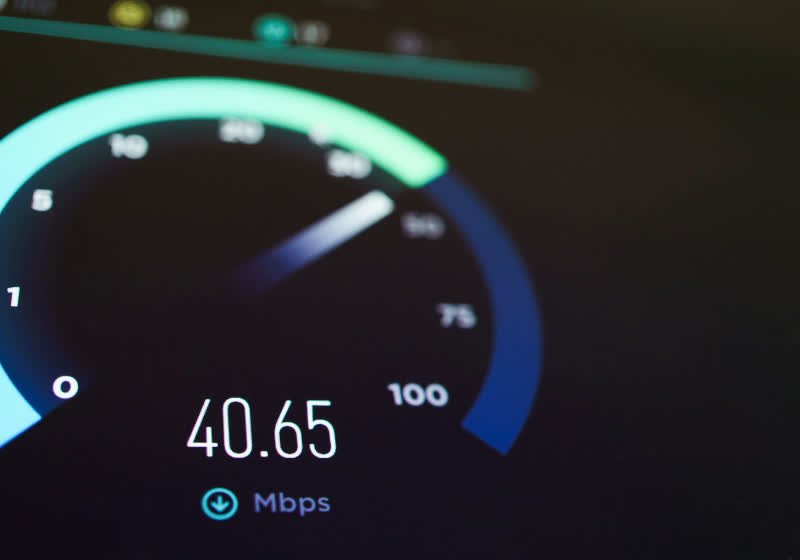
Windows 11 has been steadily expanding its array of small, user-friendly conveniences designed to make everyday computing feel faster and more responsive. Among the latest additions is a new speed test feature accessible directly from the taskbar. Rather than introducing a native, in-depth benchmarking tool built into the operating system, this speed test acts as a shortcut that launches a Bing-hosted page embedding Ookla Speedtest. The interface presented is simplified, prioritizing quick results over detailed diagnostic metrics, and the test runs remotely on Ookla’s servers rather than locally within Windows.
This approach aligns with Microsoft’s broader philosophy of incremental usability improvements. Rather than undergoing extensive architectural changes, Windows 11 often adopts bite-sized enhancements that address common user needs—such as quick connectivity checks, faster access to online services, and easier diagnostics—without demanding large-scale software updates or substantial system resource commitments. The speed test shortcut fits into that pattern, offering a familiar, widely used testing framework (Ookla Speedtest) through a seamless, integrated entry point.
For users, the feature promises a familiar way to verify network performance with minimal friction. It reduces the steps required to reach a Speedtest page and provides a one-click pathway to measure current network conditions. However, it is important to recognize the distinction between this shortcut and a traditional, locally executed benchmark: the test runs on the internet, depends on the browser and network path to Ookla’s servers, and outputs results via the external service rather than a closed, OS-contained metric. As a result, while it can be convenient for a quick check, it may not replace more comprehensive network diagnostics or enterprise-grade performance assessments.
From a broader perspective, the inclusion of such features highlights Windows 11’s ongoing evolution: a focus on streamlined user experiences, accessible functionality, and pragmatic tools that help users quickly gauge system performance and connectivity. The change also raises questions about consistency, privacy, and the balance between convenience and control. As always, users should remain mindful of where data originates, how it is handled by third-party services, and whether the provided information meets their needs for accuracy and depth.
In-Depth Analysis
The Windows 11 speed test shortcut embodies a practical, low-friction design approach. By linking directly to a Bing-hosted page that embeds Ookla Speedtest, Microsoft reduces the perceived barrier to conducting a network performance check. The interface presented to the user is simplified relative to the standalone Speedtest app or a vendor-provided diagnostic suite. This simplification serves a dual purpose: it keeps the feature visually consistent with Windows 11’s modern aesthetic and minimizes the cognitive load on users who simply want a quick read on current connection quality.
Key considerations surrounding this approach include the following:
Accessibility and Convenience: The taskbar integration makes it easier for users to perform a speed check without navigating away from their working environment. The one-click access pattern aligns with contemporary design principles that favor immediate gratification and minimal context switching. For users troubleshooting connectivity, such a shortcut can rapidly confirm whether the issue is local (device, router, Wi-Fi) or external (ISP or distant server problems).
Web-Based vs. Native Benchmarking: Unlike a native OS benchmark that would run locally and produce system-wide performance metrics, the speed test in its current form is a web-based evaluation of network throughput. Results are contingent on the browser, the user’s current network path, and Ookla’s online testing infrastructure. While the tool provides a standard metric (download/upload speeds, ping), it does not capture deeper system performance indicators such as CPU or memory bottlenecks, disk throughput, or GPU-related workloads. This distinction is essential for users and IT professionals who rely on comprehensive benchmarking for troubleshooting or hardware evaluation.
Privacy and Data Considerations: Because the test relies on an external service, data is transmitted to Ookla and Bing in the process of measuring network speed. Users should be aware of what data is collected and how it is used. For individuals with strict privacy requirements or in highly regulated environments, relying solely on an online speed test may be insufficient or inappropriate. It is prudent to review privacy policies and, where necessary, employ offline diagnostics or enterprise-grade monitoring tools that operate within an organization’s security framework.
Impact on User Perception: Small, well-integrated conveniences can improve perceived system responsiveness and confidence in the device’s reliability. Even if the test’s results are not deeply diagnostic, the frequency and ease of use contribute to a sense that Windows 11 is continually enhancing the user experience with thoughtful, low-friction features. This strategy can foster stronger user engagement and satisfaction, which, in turn, can influence loyalty and adoption rates.
Implications for Future Updates: The speed test shortcut exemplifies how Microsoft might introduce additional lightweight utilities that leverage trusted third-party services for quick outcomes. This approach reduces the need for heavy, resource-intensive native tooling while preserving functionality. If successful, such patterns could lead to more partnerships with established providers and a gradual expansion of in-situ services accessible via the taskbar or other core UI elements.
Limitations and Edge Cases: In situations with limited or no internet connectivity, the feature loses its utility. Furthermore, in heavily constrained environments—such as enterprise networks with strict proxy configurations, VPNs, or captive portals—the web-based test may not render correctly or may provide skewed results. Users should have contingency plans for offline performance assessment when necessary, and administrators may want to document approved diagnostic tools for these scenarios.
Alternatives and Complementary Tools: For users seeking a deeper understanding of network performance or system performance, a range of options exists. Local benchmarking tools can test hardware components independently of network conditions (e.g., storage throughput tests, processor benchmarks). For network diagnostics, tools that operate via command-line interfaces, such as iperf, or vendor-specific network monitoring solutions, can provide more granular data. IT professionals often combine quick web-based checks with more structured testing sequences to obtain a comprehensive view of performance.
From a broader vantage point, Windows 11’s ongoing accumulation of such small conveniences suggests a deliberate design philosophy: prioritize practical, user-facing features that reduce friction in everyday tasks while avoiding disruptive, sweeping changes that could unsettle users or require extensive retraining. This incremental approach supports a stable user experience while gradually expanding the platform’s capabilities. It also allows Microsoft to gather usage data on these features and refine them in subsequent updates, potentially informing future integrations with other services or deeper OS-level enhancements.
The speed test shortcut, in essence, is a case study in balancing simplicity with functionality. It addresses a genuine user need—quickly assessing current network performance—without redirecting users through multiple steps or invoking heavier diagnostic workflows. However, its dependence on external services, and its scope as a surface-level check rather than a comprehensive benchmark, means it should be used as a first-pass indicator rather than a definitive measurement. Users should calibrate expectations accordingly and consider supplementing this tool with additional diagnostics when precise or granular data is required.
Perspectives and Impact
The introduction of a speed test shortcut in Windows 11 reflects a broader industry trend toward integrating practical, on-demand diagnostics into mainstream operating systems. As devices become more central to work, education, and entertainment, the demand for quick, reliable checks of core capabilities—such as network connectivity—rises. This trend is driven by several factors:
User Empowerment: Quick access to speed testing empowers users to troubleshoot in real time. When connectivity issues arise, being able to verify whether the problem lies with the local network or an external provider immediately informs subsequent steps, such as switching networks, resetting routers, or contacting the service provider.
Reduced Support Load: For consumer-grade scenarios, streamlined diagnostics can reduce the volume of basic support inquiries. If users can readily confirm a basic metric like download or upload speed, it can defuse potential concerns and allow support teams to focus on more complex problems.

*圖片來源:Unsplash*
Partnerships and Ecosystem Strategy: By leveraging an established testing framework (Ookla Speedtest) through a familiar Bing interface, Microsoft reinforces partnerships within its ecosystem. This approach can also pave the way for future integrations with other services, potentially including performance dashboards, telemetrics, or enterprise-oriented monitoring features that leverage cloud-based testing data.
Privacy and Trust Considerations: The deployment of such shortcuts must be balanced with clear communication about data collection and usage. Users are increasingly vigilant about how their data is used, particularly when tests involve external servers. Transparent privacy practices and straightforward opt-in/opt-out controls are critical to maintaining trust.
Platform Consistency and Accessibility: Integrating a speed test as a baseline feature rather than a separate app aligns with Windows 11’s emphasis on a clean, cohesive user interface. Accessibility considerations—such as keyboard navigation, screen reader compatibility, and color contrast—are crucial to ensure that the feature serves a broad audience, including users with disabilities or those operating in challenging environments (e.g., classrooms, public Wi-Fi scenarios).
Looking ahead, several potential directions could shape how such features evolve:
Enhanced Diagnostics: If the current approach proves valuable, Microsoft could expand the scope of quick diagnostics to include other network metrics, such as jitter, latency under load, or packet loss, while maintaining a lightweight, non-disruptive footprint.
Privacy Controls: Users may gain more granular control over what data is shared with third-party services during these quick tests. Options to run tests in a more privacy-preserving mode or to localize certain measurements could become desirable.
Enterprise Features: In business environments, IT administrators might request more robust, policy-driven diagnostic tools that integrate with existing management platforms. This could lead to configurable speed tests that respect corporate security standards and network architectures.
Cross-Platform Parity: As Microsoft emphasizes ecosystem coherence, similar conveniences could appear across devices in the Windows family and linked platforms (e.g., mobile or tablet variants) to provide a consistent user experience.
Data-Driven Improvements: Anonymized usage data from such features could inform improvements in the testing interface, the accuracy of results, and the alignment with user expectations. Responsible data handling and transparency will be essential as these tools mature.
Overall, the speed test shortcut signals Microsoft’s preference for lightweight, practical enhancements that enhance usability without destabilizing the OS. This strategy can yield tangible benefits for users who value quick checks and present a path toward broader, data-informed improvements that preserve the core strengths of Windows 11.
Key Takeaways
Main Points:
– Windows 11 now offers a taskbar accessibility shortcut to a web-based speed test using Ookla Speedtest embedded in Bing.
– The feature is a shortcut, not a native, locally executed benchmark, and results are provided by an external service.
– This addition emphasizes convenience and quick diagnostics while raising considerations about privacy and the depth of measurement.
Areas of Concern:
– Reliance on external services may raise privacy and data usage concerns.
– The test provides a surface-level metric and should not replace comprehensive benchmarking.
– Edge cases include users with limited connectivity or complex corporate networks where web tests may be unreliable.
Summary and Recommendations
The Windows 11 speed test feature represents a prudent, user-centric enhancement that aligns with the broader pattern of incremental productivity improvements in the operating system. By offering a direct shortcut to an established online Speedtest, Microsoft reduces friction for users seeking a rapid gauge of their network conditions. As a web-based tool, it prioritizes speed and convenience over depth, making it suitable for quick checks rather than rigorous performance analysis.
For most everyday users, this feature can be a helpful first-step diagnostic to determine whether connectivity issues stem from the local environment or external factors. However, it should be complemented with more comprehensive tools when precise measurements are necessary, such as enterprise-grade network monitoring solutions, offline benchmarking, or platform-specific diagnostics that provide deeper insights into device performance.
Privacy considerations should not be overlooked. Since the test involves transmitting data to third-party services, users should review privacy policies and be mindful of data exposure, especially on shared or public networks. If privacy concerns are paramount, users should rely on contained, offline diagnostics or utilize the enterprise controls available through organizational IT governance.
In practical terms, users should:
– Treat the speed test shortcut as a quick-check tool rather than a definitive benchmark.
– Use additional diagnostics for deeper analysis when troubleshooting complex issues or evaluating hardware performance.
– Be aware of data privacy implications and adjust settings accordingly.
– Provide feedback to Microsoft if features like this could benefit from expanded privacy controls or more detailed measurements.
Overall, the feature underscores Windows 11’s ongoing commitment to improving everyday usability through concise, accessible tools. Its success will likely hinge on balancing convenience with clear communication about the scope and limitations of the measurements it provides, as well as ensuring that privacy and security considerations remain at the forefront of such integrations.
References
- Original: https://www.techspot.com/news/111383-windows-11-keeps-adding-small-conveniences-including-speed.html
- Additional context on Windows 11 feature philosophy and user experience improvements
- Ookla Speedtest official site: https://www.speedtest.net
- Bing integration and privacy policy considerations for third-party services
Forbidden:
– No thinking process or “Thinking…” markers
– Article starts with “## TLDR”

*圖片來源:Unsplash*